

FlickFlick 1.14 is out. If you already have it, it updates itself; if you don't, it's free for Mac and Windows. Most of this release went into the media ring, because that's the ring I use all day, and it should feel like a thing in your hands rather than a control panel.
The media ring, rebuilt for real hands
The first version of "swipe to skip" skipped when you didn't mean it, and sometimes nudged the volume on the way. Now one gesture is either the volume or the tracks, never both, and a skip waits for you.
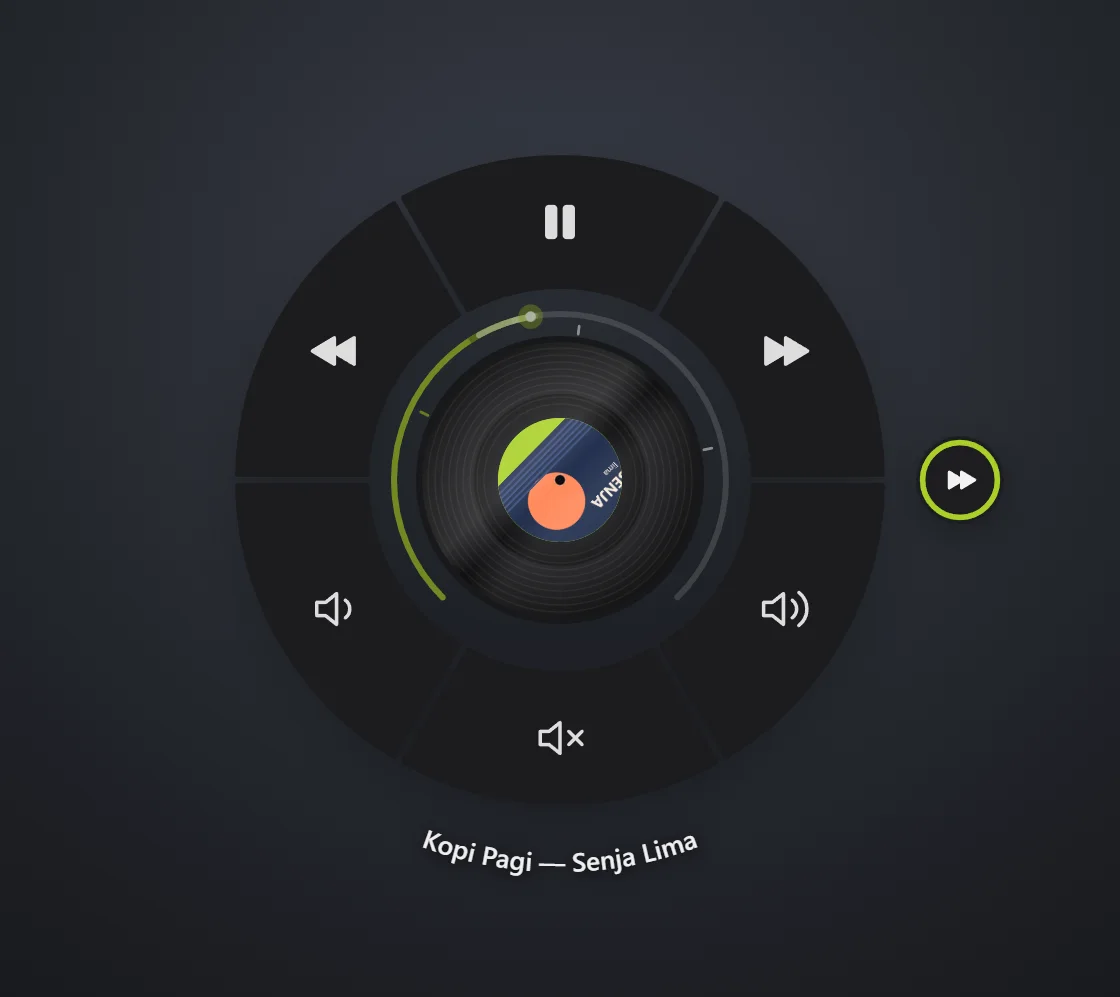
- Flick and lift. Flick sideways and the next (or previous) track fills up beside the ring; it skips when your fingers leave the trackpad. Changed your mind? Slide back a little before you lift and nothing happens. On a Mac this uses Accessibility to notice the lift; without it, and on Windows, it skips once the swipe goes quiet.
- Volume or tracks, decided early. The ring waits a few pixels before deciding what a gesture is, then goes by its angle: mostly sideways is tracks, mostly up and down is the volume, a quick diagonal is a flick, a slow one is nothing.
- A notch is a step. Each wheel notch moves the volume one step, 1%, 2% or 5% (your choice), with a quiet notch on the arc for every step. On Windows too, whatever your display scaling.
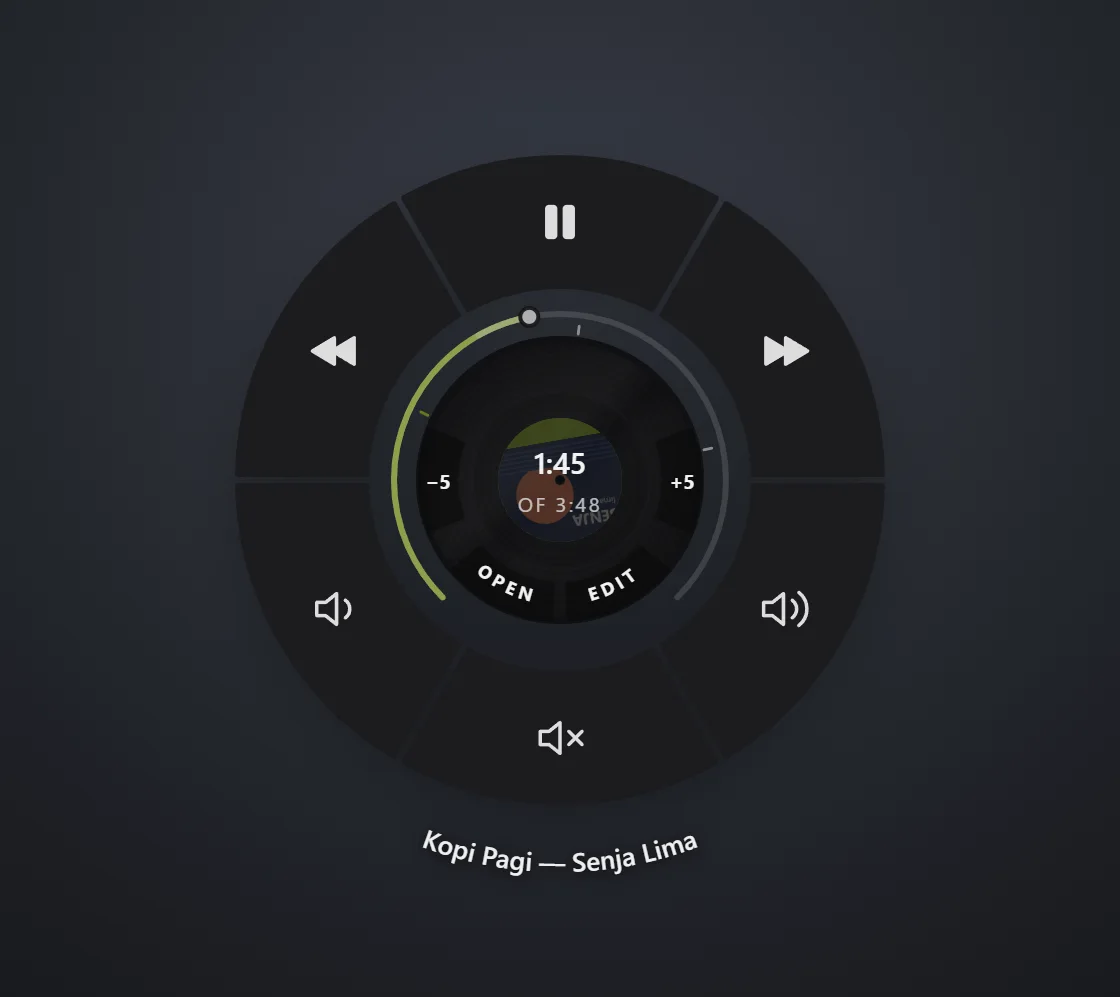
- − / + on the record. Point at the record and −5 and +5 appear on either side of it: jump back or ahead by 5, 10, 15 or 30 seconds.
- Keys. Space plays and pauses (or a key you pick). Number keys work like YouTube's: 1–9 jump to that chapter, or to 10–90% when there are no chapters, and 0 goes back to the start.
A record that turns like a turntable
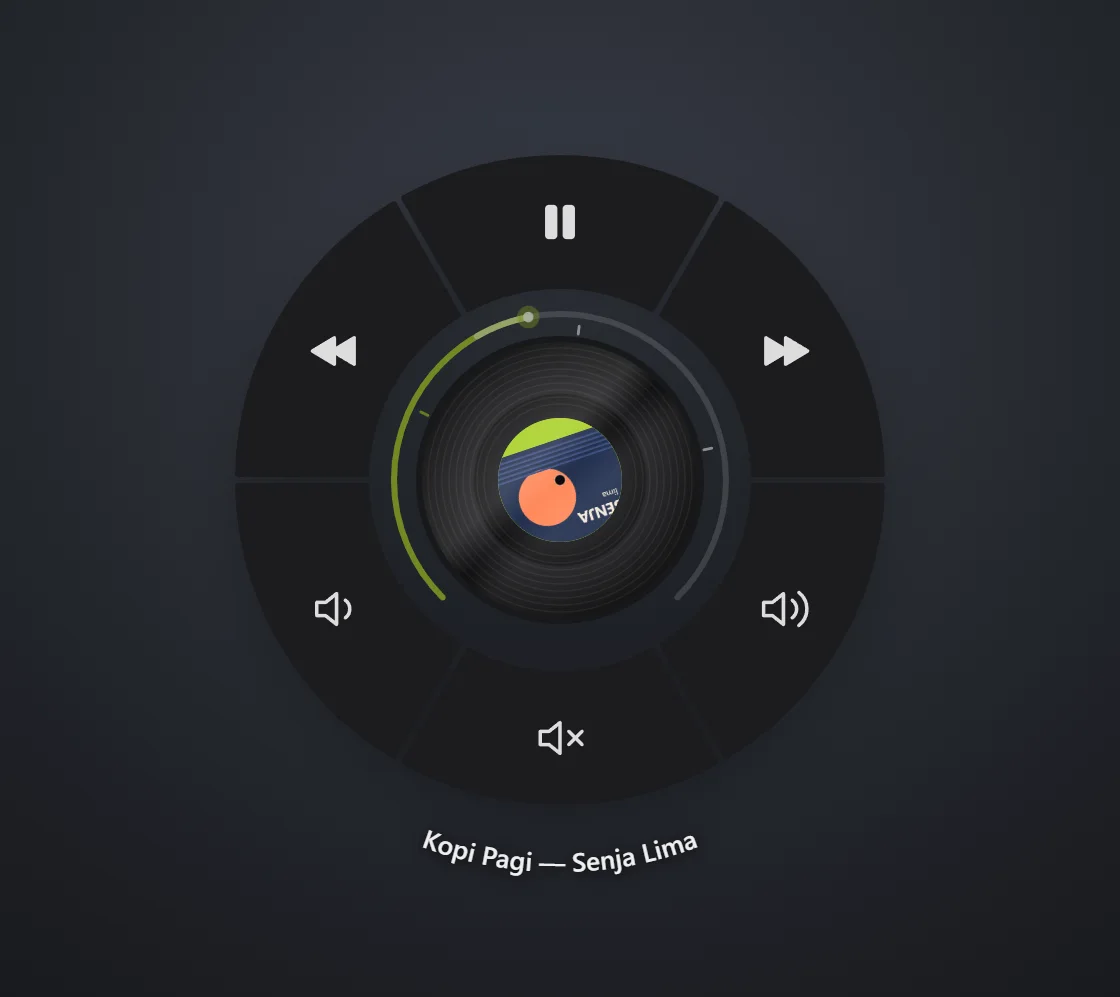
The record used to start and stop dead, like a picture of a record. Now it spins up when the music starts and winds down over a second or so when you pause, the way a real platter does. Everything that moves on the seek ring runs on the record's speed, so it all slows down and settles with it.
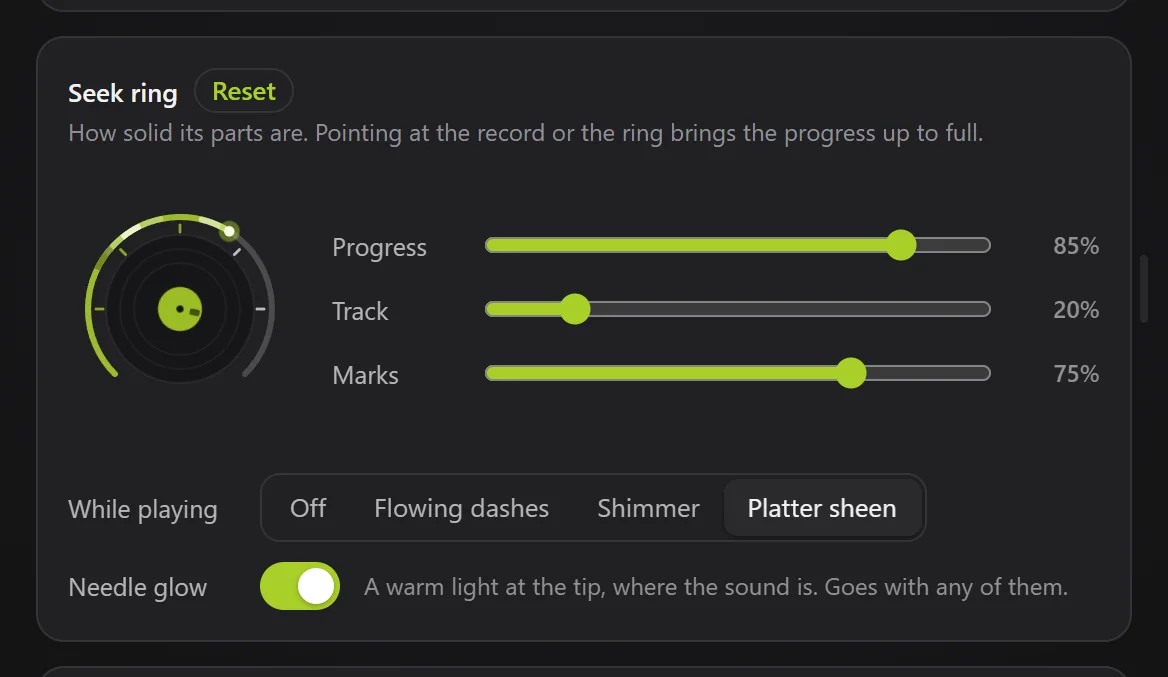
What the progress does while music plays is up to you, in Settings → Seek ring → While playing:
- Platter sheen (new): light catches the lit part of the gauge and turns with the record, as if the gauge were the platter's edge.
- Shimmer and Flowing dashes, now in a darker shade of your accent, so they still show on a bright, fully solid progress.
- Needle glow (new, a switch that goes with any of them): a warm point of light at the tip of the progress, where the sound is, with a short trail. It cools off when you pause.
The Seek ring card shows a small turning record with your settings on it, so you can see what you're picking as you drag the sliders.
Live streams
A live stream has no length, and the ring used to pretend it did: "0:00 of 0:00", − / + buttons that did nothing, an empty gauge. Now a live stream gets its own state. The whole gauge is lit, the While playing effect runs along it, and LIVE sits on the record with a red dot that pulses while you watch.
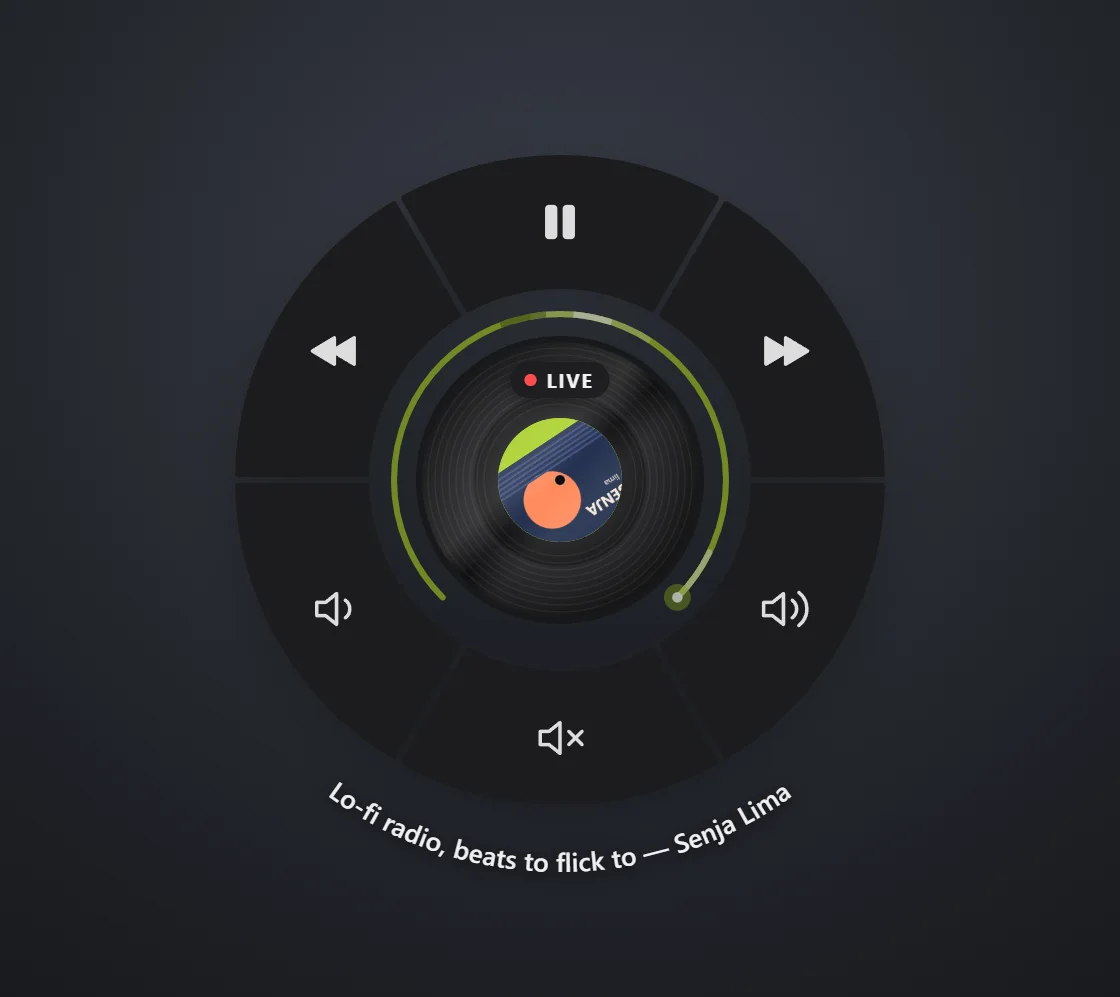
Pause, and you're behind: the dot turns grey. Click it and FlickFlick takes the stream back to live and plays, like YouTube's own LIVE button.
Search reaches your files and the web
Start typing on the ring and search now looks in two more places.
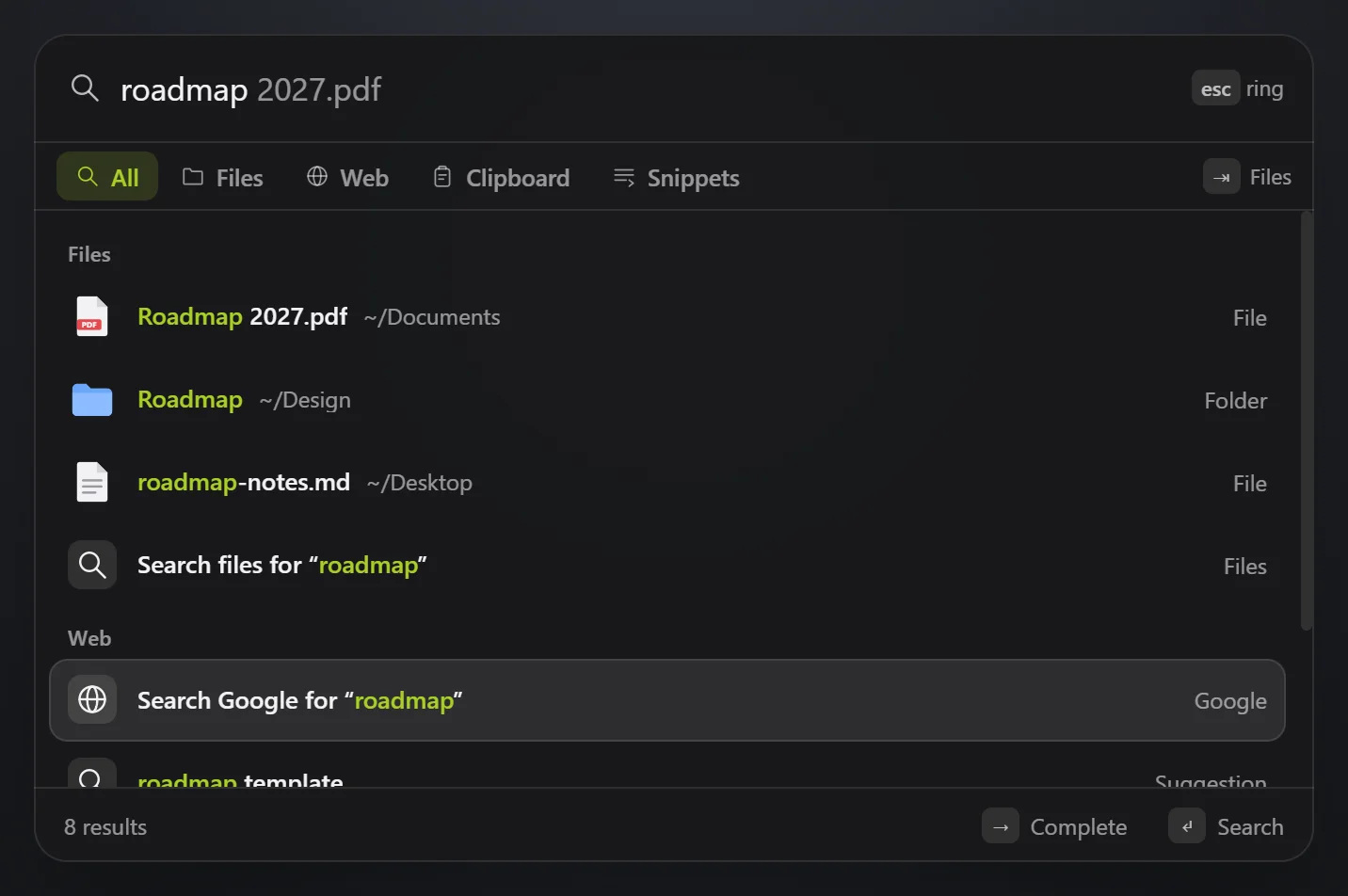
- Files and folders from your home folder, using the index your computer already keeps (Spotlight on a Mac, Windows Search on Windows). Every word you type has to be in the name; recent files and shallow folders come first. Enter opens one, and ⌘K shows you where it is.
- The web, one Tab away: Google, DuckDuckGo or Bing, with the engine's suggestions while you type (you can switch those off), and a grey completion that → takes. Type a web address and Enter opens it.
Tab moves between All, Files, Web, Clipboard and Snippets, and Shift+Tab goes back.
Take it to another computer
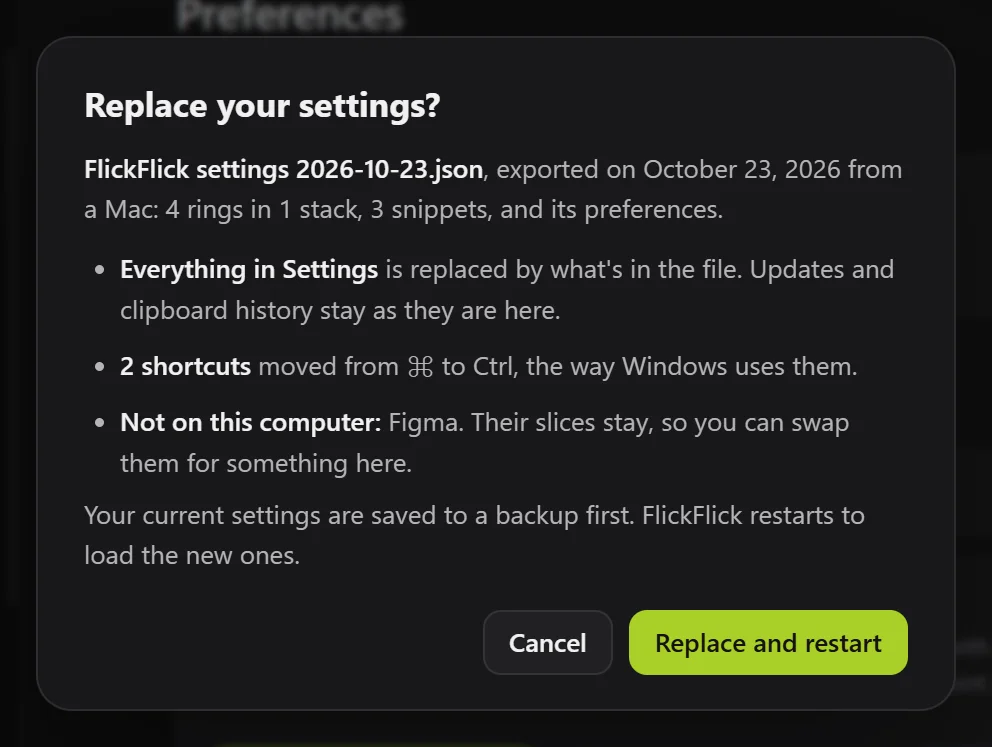
Settings → Preferences → System → Export saves your rings, stacks, snippets, hotkeys and every preference to one file. Import it on another computer, Mac or Windows: it tells you what's in the file before it replaces anything, moves your shortcuts between ⌘ and Ctrl, names the apps that aren't on this computer (their slices stay, so you can swap them), and keeps a backup of what you had.
And if you've tweaked something and want it back: every preference you've changed now has a Reset next to its name, and Reset everything takes FlickFlick back to a fresh install, after saving a copy of your settings.
Windows gets the full media ring
- Album art on the record, read from Windows' own media controls.
- The ring's own volume and seek gauge: the volume is set on your speakers directly, so the ring shows its arc and percentage and Windows' volume popup stays away, and the gauge seeks whenever the player allows it.
- Steam and Epic games show up in the app list with their own icons. Games install as web-style shortcuts (steam://…), which FlickFlick used to skip.
- No more black video. With Dim background on, Edge and Chrome thought the window behind the ring was covered and stopped drawing it, so a video went black while its sound played on. Fixed.
- A hotkey on every slice, right in the ring editor, and a tray icon you can actually see on a dark or light taskbar.
Small things
- A click anywhere outside the ring closes it, like Esc. It used to need to be quite far out.
- Tips. The first time the media ring opens with something playing, three small tips point at the gauge, − / + and the gestures. After an update, Settings shows what's new in a short tour. Both can be replayed from Preferences → System → Tips.
- Your clock, your way: 12 or 24 hours, with seconds, or even milliseconds (Plugins → Date & time).
- Open at login is in the welcome and in the tray menu, and after a Quit & Reopen (macOS asks for one when you allow a permission) you're back where you were.
- With Liquid Glass, the buttons on the record are glass too.
Get it
Download FlickFlick 1.14 for Mac or Windows →
Already have it? It updates itself, at a moment you're not using it. Something feel off on the media ring, or a game missing from your apps? Tell me.
Comments
No comments yet. Be the first.